
All articles
Find and organise your prompts
Find the right prompt in seconds, even when your library has hundreds.
Find a prompt
On the My Prompts page:
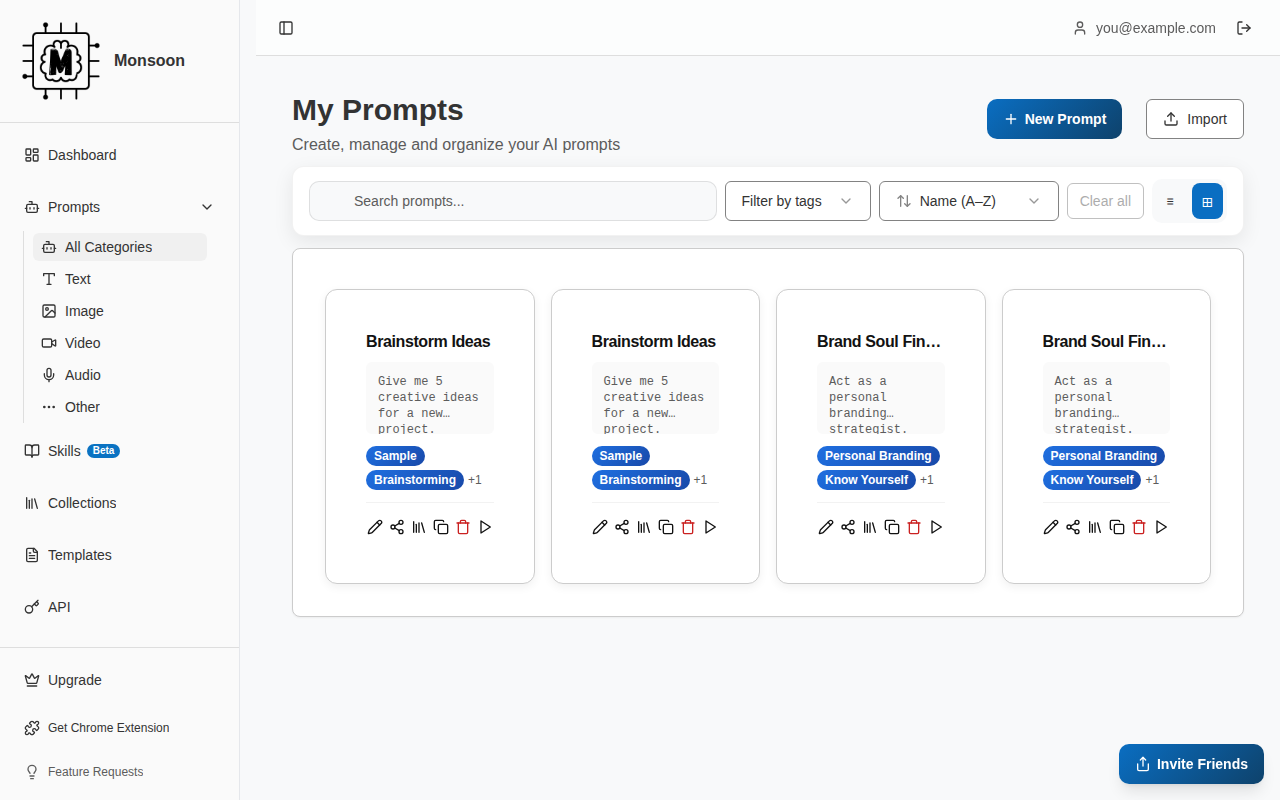
- Type in Search prompts... to search by name or description.
- Open Filter by tags to show only prompts with certain tags.
- Open the sort menu (it starts at Name (A–Z)) to sort by name, last updated, or newest.
- Click Clear all to reset your search and filters.
To see one kind of prompt, click a category chip under the search bar: Text, Image, Video, Audio or Other. Click All to see every prompt again. On a phone, swipe the chips sideways to see them all.
Choose how your library looks
- Click the Grid View button for cards.
- Click the List View button for a compact table.
AI Monsoon remembers your choice next time.
What each card button does
Every prompt card has a row of icons:
| Icon | Does this |
|---|---|
| ✏️ Edit | Opens the prompt so you can change it |
| 🔗 Share | Creates a public link. See Share a prompt |
| 📚 Add to collection | Adds it to a collection. See Build and share a collection |
| ⧉ Copy Prompt | Copies the prompt text, ready to paste anywhere |
| 🗑 Delete | Deletes the prompt |
| ▷ Run | Opens it in your AI tool. See Run a prompt in your AI tool |
Click anywhere else on a card to open the prompt's details.
Tips that save time
- Tag by project or client, for example
acme,newsletter. One filter then shows everything for that project. - Name prompts by the result, for example "LinkedIn post from blog", not "Prompt 3".