
All articles
Share a prompt
Share a prompt with anyone, even people without an AI Monsoon account. They can fill in its variables, copy it and use it straight away.
Before you start
- Any plan. Your prompts are private until you share them.
Steps
- In the sidebar, click Prompts.
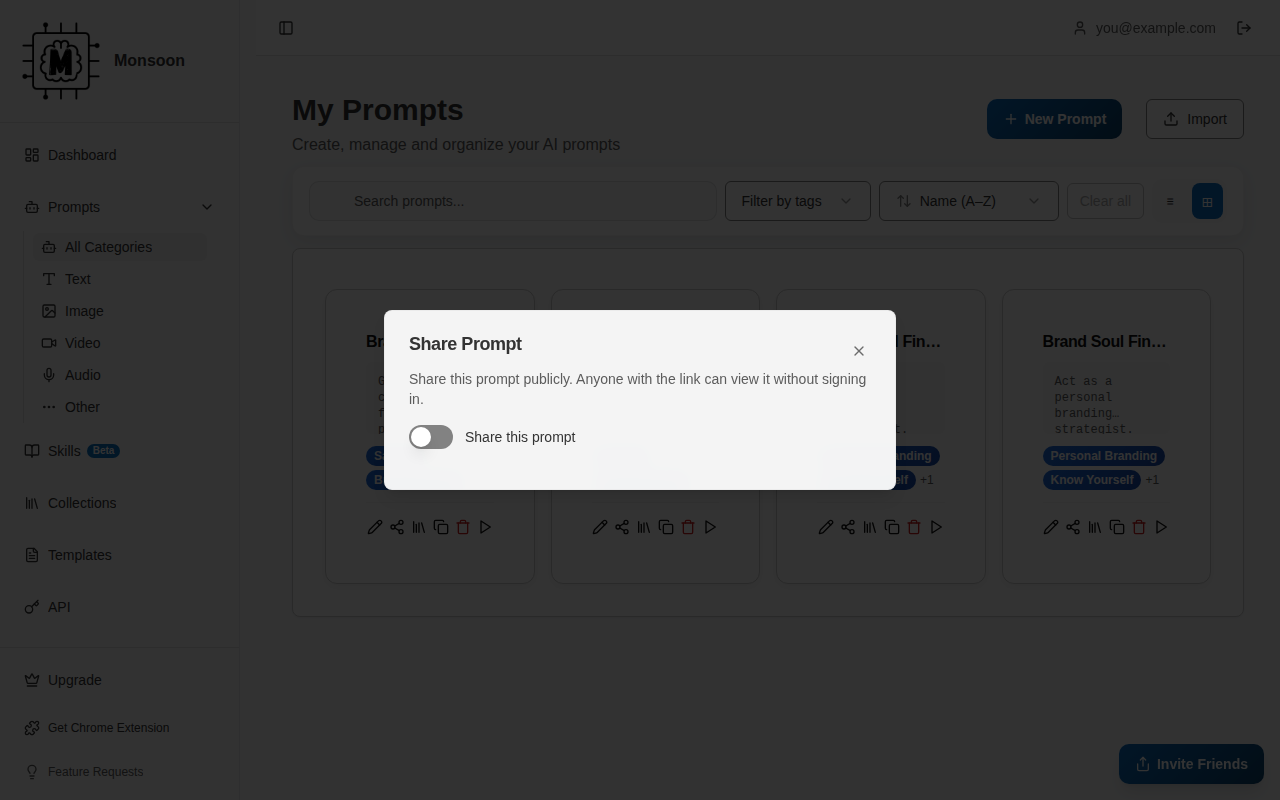
- On the prompt's card, click the Share icon. The Share Prompt window opens.
- Turn on Share this prompt.
- Copy the link, or share it to social media.
What people see
The link opens a page with your prompt. If it has variables, visitors fill them in and click Copy filled prompt. Signed-in visitors can click Clone to My Library to save their own copy.
On your card, a link icon shows the prompt is shared, and an eye icon shows how many times it's been viewed.
Stop sharing
- Click the Share icon on the card again.
- Turn off Share this prompt.
The link stops working straight away. Turn it back on later and the same link works again.
Common questions
Will my shared prompt show up on Google? No. Shared pages are hidden from search engines. Only people with the link can find them.