
All articles
Start from a template
Skip the blank page. Pick a proven prompt from the Starter Library, make it yours, and save it in seconds.
Before you start
- Any plan can use templates. The free trial shows a preview of the library. Plus and above unlock the full library.
- Creating your own templates needs Plus (up to 100) or Pro (unlimited).
Steps
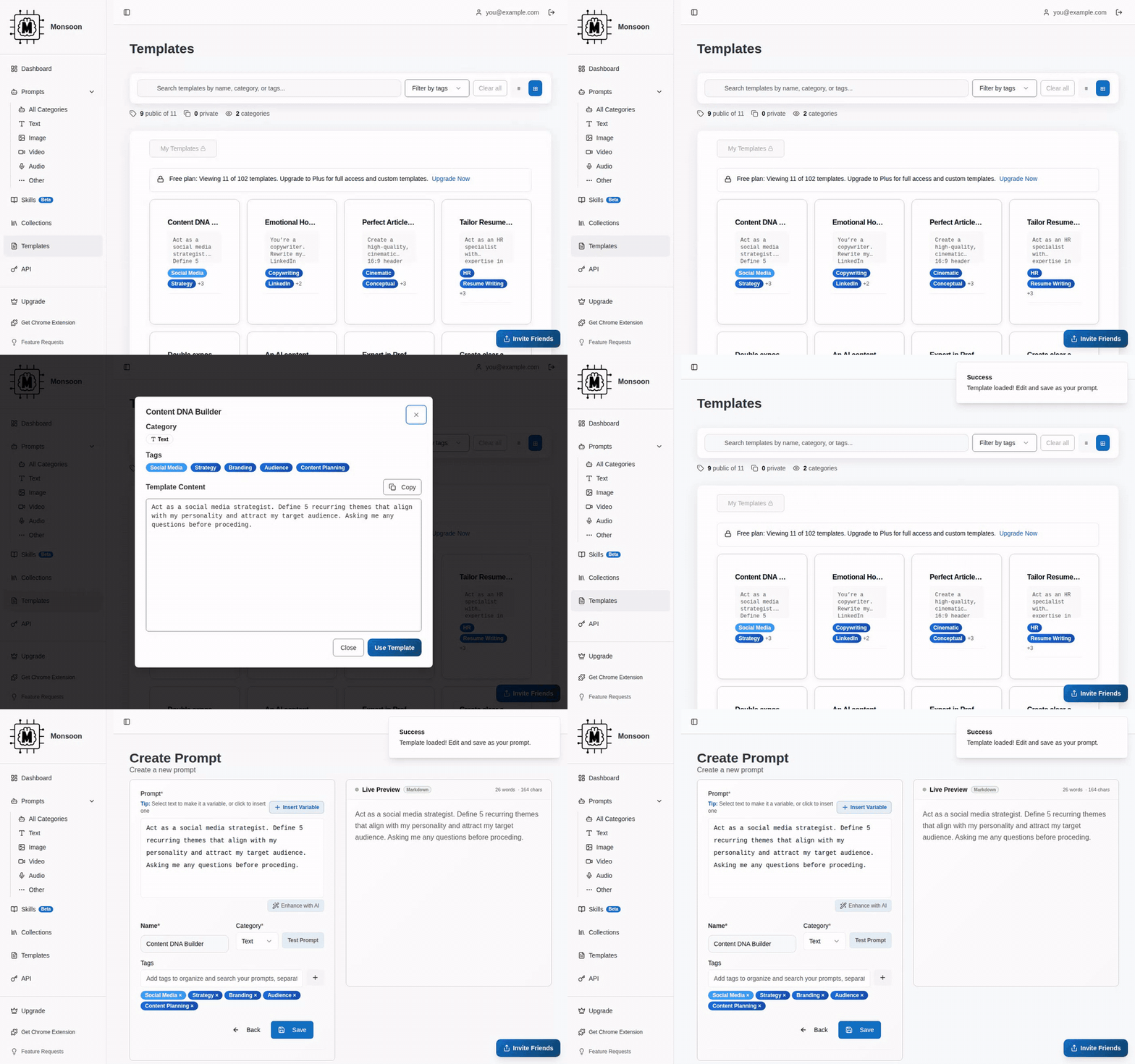
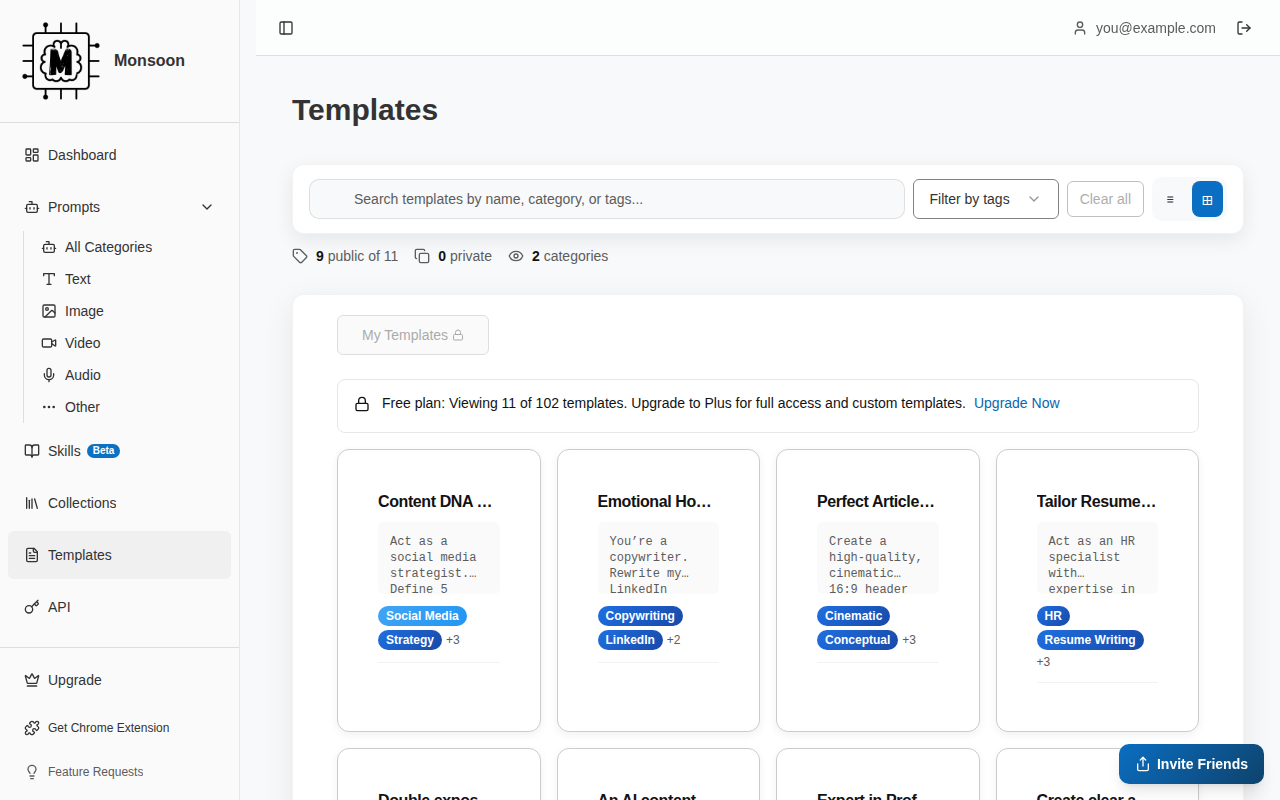
- In the sidebar, click Templates.
- Search, or use Filter by tags, to find a template. For example, search "LinkedIn".
- Click a template card to preview it.
- Click Use Template.
- Click Continue to Editor.
- Change anything you like, then click Save.
What you'll see
The Create Prompt page opens with the template's text, name, category and tags already filled in. Once you save, it's your own prompt in My Prompts. Changing it never changes the template.
Optional settings
- My Templates: your own private templates (Plus and above). Click Create Template to add one.
- Clone to Private (icon on a starter template, Plus and above): copies it into My Templates so you can adapt it for your team or clients.