
All articles
Save your first prompt
Save a prompt once and never rewrite it again. Add variables, and one prompt works for every project.
Before you start
- Any plan, including the free trial. The trial holds up to 50 prompts. Paid plans are unlimited.
Steps
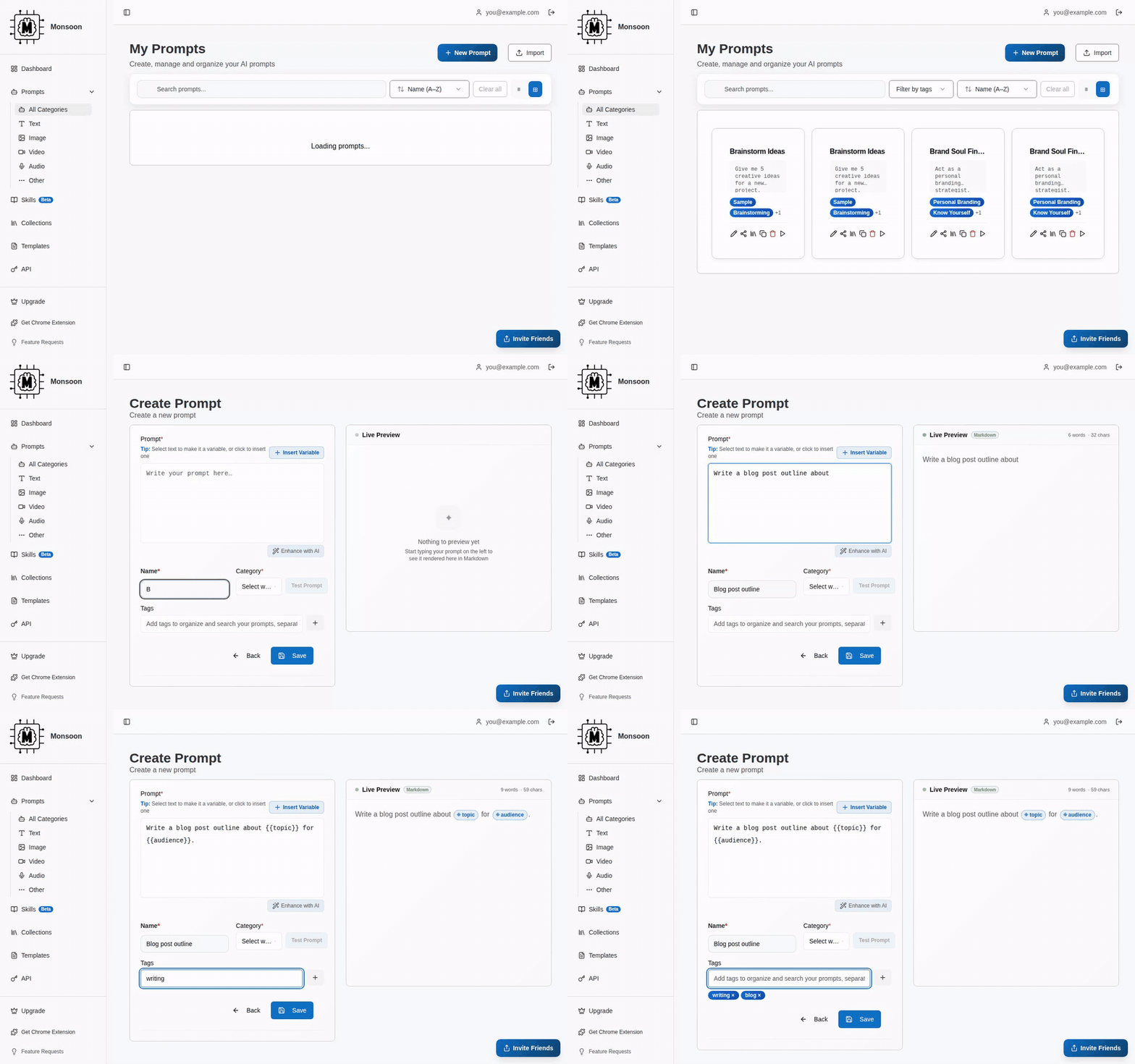
- In the sidebar, click Prompts.
- Click New Prompt. The Create Prompt page opens.
- Type or paste your prompt into the Prompt box.
- Type a Name you'll recognise later, for example "Blog post outline".
- Open Category and pick what the prompt makes: Text, Image, Video, Audio or Other.
- Optional: in Tags, type a few words separated by commas, for example
writing, blog. - Click Save.
What you'll see
Your prompt now appears in My Prompts. The Live Preview on the right shows how it reads before you save. Every time you save changes, AI Monsoon keeps the earlier version too.
Make your prompt reusable with variables
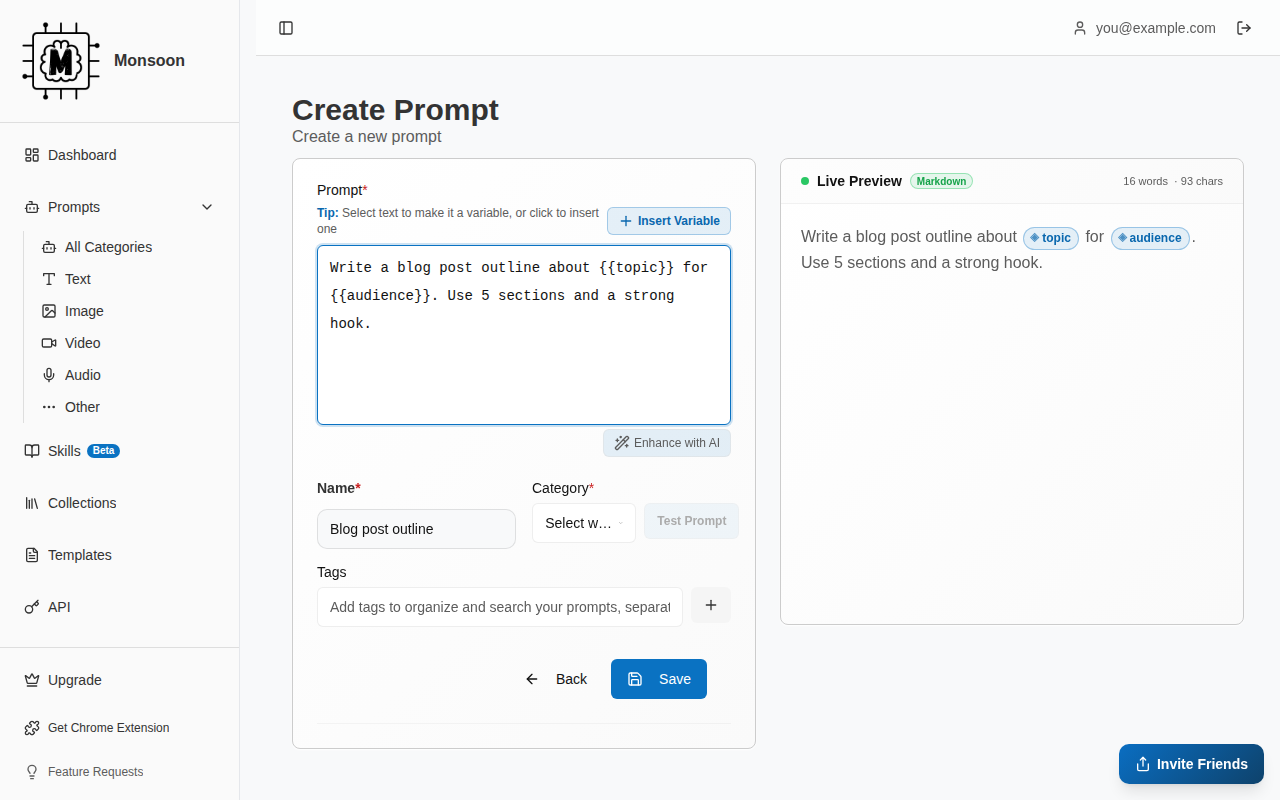
A variable is a blank you fill in each time you use the prompt. Write it with double curly brackets, like {{topic}}.
For example, "Write a blog post outline about {{topic}} for {{audience}}" works for every blog post you'll ever write.
There are three ways to add one:
- Type it straight in:
{{topic}}. - Select a word in your prompt, then choose Make Variable.
- Click Insert Variable.
Variables show up as blue chips in the Live Preview.
Optional settings
- Enhance with AI: rewrites your prompt so it's clearer. See Improve a prompt with AI.
- Test Prompt: runs the prompt and shows a sample answer before you save.
Common questions
I left the page without saving. Is my prompt lost? If you click Back with unsaved changes, AI Monsoon asks first, so you don't lose work by accident.
Why is New Prompt greyed out? You've reached 50 prompts on the free trial. Upgrade for unlimited prompts.