
All articles
Run a prompt in your AI tool
Send any saved prompt to ChatGPT, Claude, Gemini, Grok or Perplexity in one click. No more copying and pasting between tabs.
Before you start
- Any plan, including the free trial.
- Be signed in to the AI tool you want to use, in the same browser.
Steps
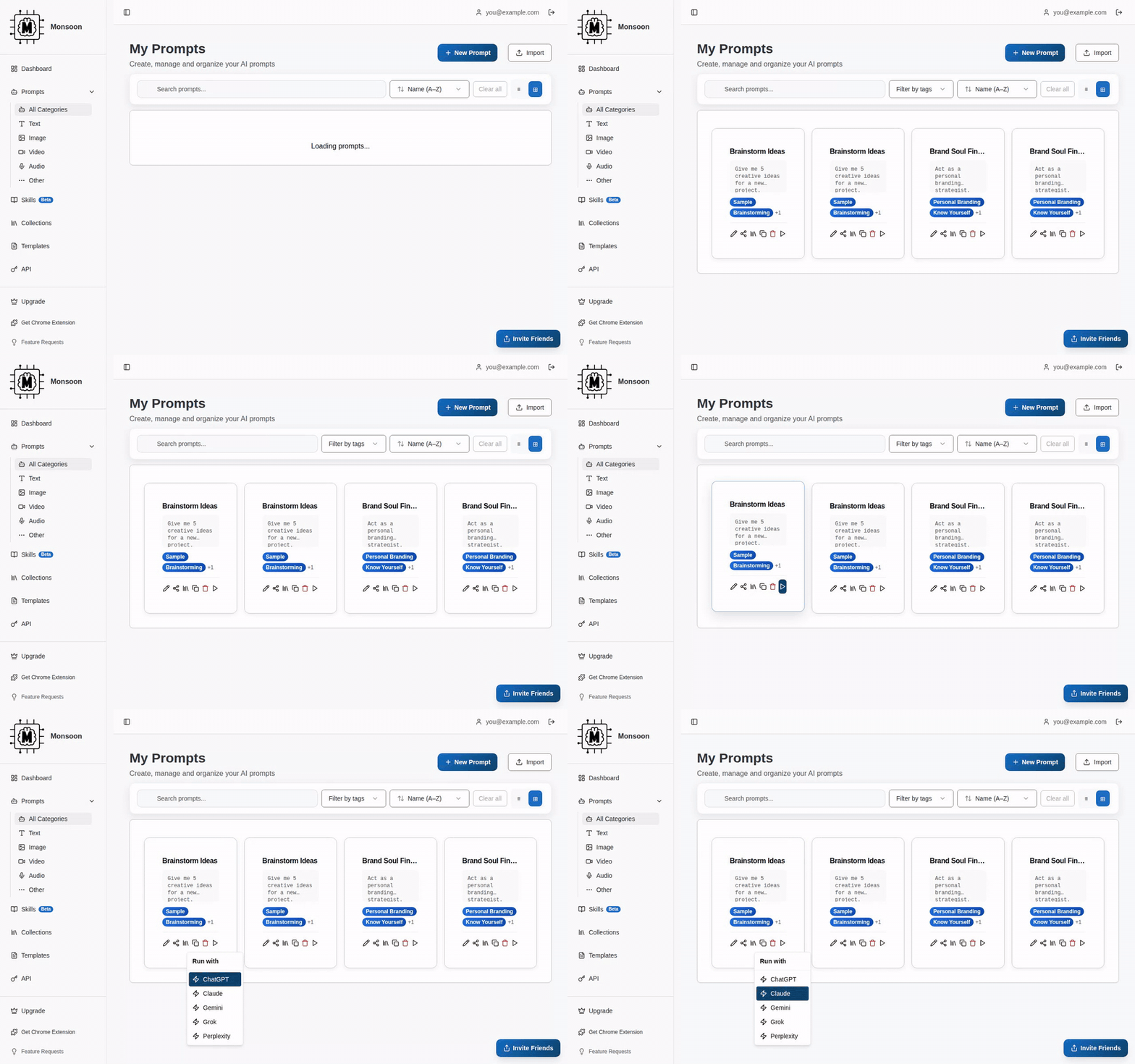
- In the sidebar, click Prompts.
- On the prompt's card, click the Run icon (▷). A Run with menu opens.
- Choose ChatGPT, Claude, Gemini, Grok or Perplexity.
What you'll see
Your AI tool opens in a new tab with the prompt filled in. Check it, then press Enter.
Using Gemini? Gemini can't receive a prompt automatically, so AI Monsoon copies it for you. When Gemini opens, paste it (Ctrl+V, or Cmd+V on a Mac).
Run it from the prompt details
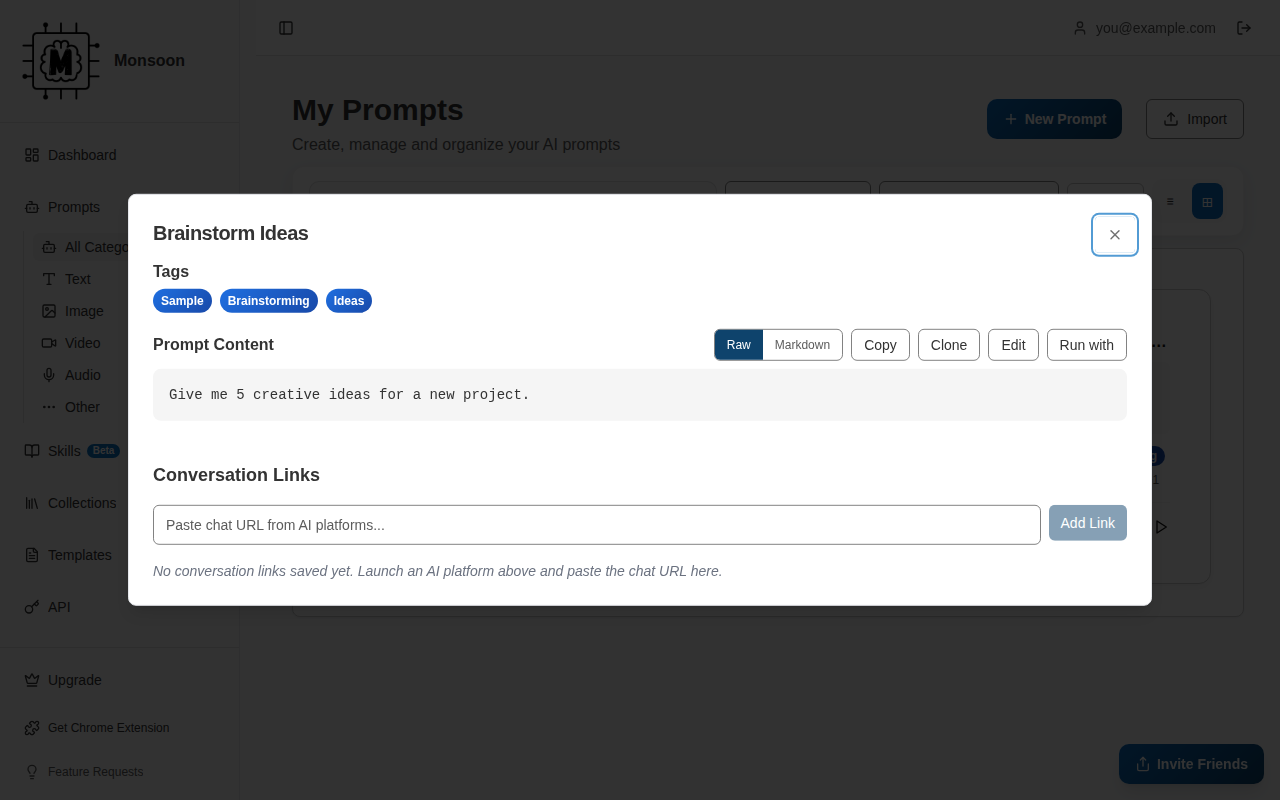
- Click a prompt card to open its details.
- Click Run with and choose your AI tool.
From the same window you can also Copy the prompt, Clone it, or Edit it.
Keep the chats that worked
Found a great conversation? Save its link with the prompt, so you can go back to it later.
- Open the prompt's details.
- Under Conversation Links, paste the chat's web address.
- Click Add Link.
Common questions
My AI tool opened but the box is empty. Some AI tools block pre-filled text. Open the prompt details, click Copy, and paste it in.
My prompt has variables like {{topic}}. Do I need to fill them in? Yes. Replace each variable with your own words in the AI tool before you send it.